Where to find Parallel Experiment save files
If you have a problem with your progress in Parallel Experiment, we may ask you to send us your save files. Here's where to find them on PC and Mac.
Only the host stores the save files. If you played together, the save files are on the device of the player who hosted the game, not on their partner's.
Parallel Experiment supports Cloud Saves on all platforms. Your progress is backed up online automatically, so when you play on a new device or reinstall the game, it should come back on its own. On iPhone, iPad and Android you can't open the save files directly, so Cloud Saves are the way to keep your progress safe there.
Windows
The save files are in this folder:
C:\Users\<YourUserName>\AppData\LocalLow\Eleven Puzzles\Parallel Experiment\PESaves
The AppData folder is hidden by default. The easiest way to get there is to open File Explorer, paste the path below into the address bar and press Enter:
%USERPROFILE%\AppData\LocalLow\Eleven Puzzles\Parallel Experiment\PESaves
Mac
The save files are in this folder:
~/Library/Application Support/Eleven Puzzles/Parallel Experiment/PESaves
The Library folder is hidden by default. To open it, go to Finder, choose Go → Go to Folder… (or press Shift + Command + G), paste the path above and press Enter.
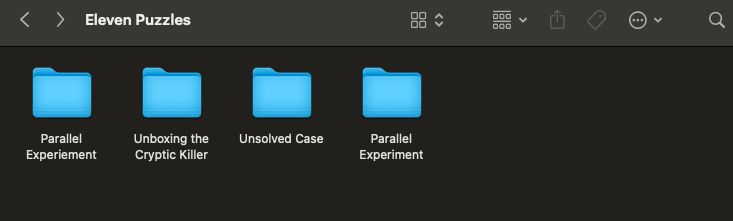
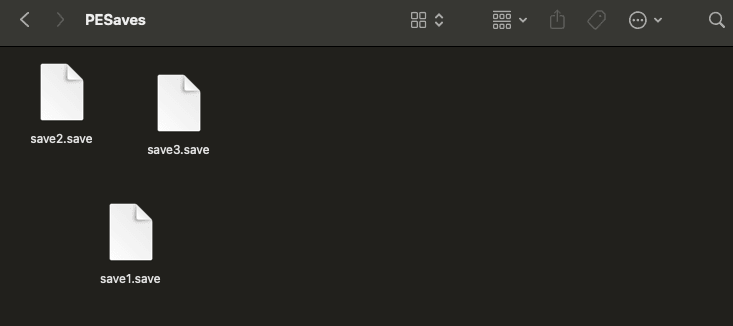
Inside the PESaves folder you'll find files such as save1.save, save2.save and save3.save.
Sending us your save files
Compress the PESaves folder into a ZIP file and send it to [email protected], together with a short description of the problem.
Looking for something else?
All help topicsMore help
Stuck on a puzzle?
Select Hint in the top right corner of the puzzle. You can also ask other players on our Discord server, or watch the Parallel Experiment walkthrough.
Looking for a partner?
Join the "Find a Detective" channel on our Discord server and meet other players looking for someone to play with.
Game updates
New versions and fixes are announced in the patch notes on our blog.
Contact us
Didn't find an answer? Write to us at [email protected] or ask on Discord. To help us solve the problem faster, please include:
- the game and its version (shown in the main menu)
- where you got it: Steam, App Store, Google Play or our website
- your device and operating system, e.g. iPhone 13 with iOS 18 or Windows 11
- what happened, and what you were doing just before
- a screenshot or video, if you can
We're a small team from Poland, so we may not reply right away, but we read every message.